Email: info@nocodepakistan,com
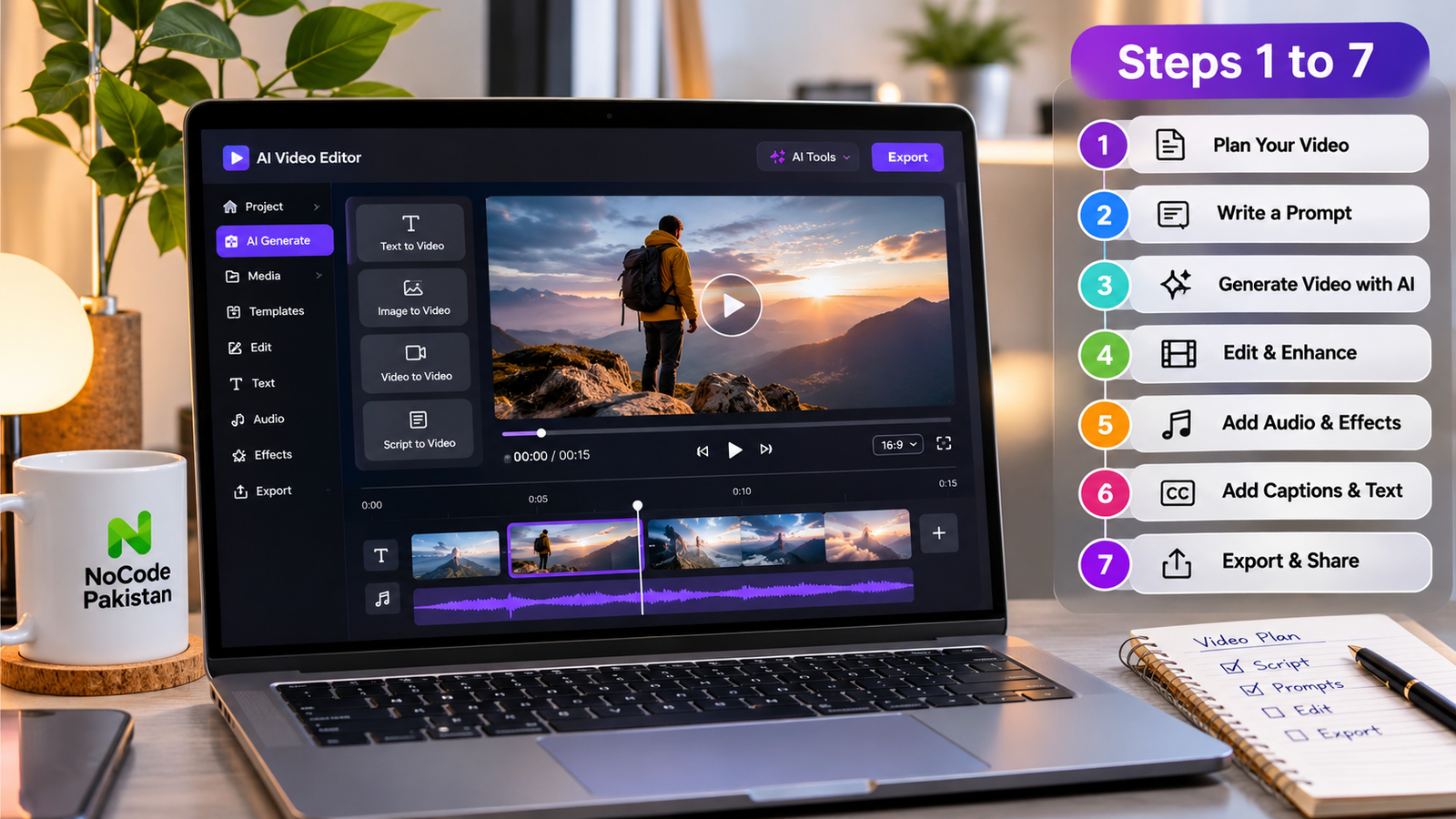

Learning how to make professional videos used to require expensive cameras, complex editing software, and hours of tedious rendering time. Today, generative artificial intelligence has completely transformed the video production landscape. In this google flow tutorial, you will learn how to turn simple text prompts and static images into breathtaking, cinematic video clips in just a few minutes.
Whether you are an e-commerce brand owner aiming to create scroll-stopping product ads, a content creator producing vertical video reels, or a freelancer offering modern digital video services, mastering this platform gives you an extraordinary advantage. Let us dive into the complete step-by-step breakdown.
Table of Contents
Transform Your Video Production Strategy
Unlock 500+ Ready-To-Use AI Video Prompts Stop guessing camera moves and prompt structures. Get instant access to hundreds of customizable story-to-video and image-to-video templates, character consistency formulas, and advanced commercial shot lists.
What Google Flow Is and Who It’s For
Google Flow is a state-of-the-art web interface designed to streamline generative AI video production. It combines advanced text-to-video and image-to-video models into a single, intuitive workspace. Instead of wrestling with complicated command-line parameters or obscure software nodes, you can control cinematic framing, camera movement speeds, scene lighting, and stylistic direction using simple controls and clean prompt inputs.
Understanding this google flow tutorial is essential for several key creator profiles:
- E-Commerce Sellers: You can convert static product photos into dynamic promotional reels for Etsy, Shopify, or Amazon listings.
- Social Media Managers: You can batch-produce short-form video content for platforms like TikTok, Instagram Reels, and YouTube Shorts without hiring full video crews.
- Digital Marketers: You can quickly prototype visual concepts, commercial storyboards, and advertising teasers for product campaigns.
- Freelancers and Agencies: You can expand your creative catalog by delivering high-end promotional video assets to clients in record time.
Google Flow Tutorial: 7 Steps
Follow this detailed google flow tutorial to guide your workflow from start to finish. Each step ensures that your final video output is sharp, cinematic, and perfectly aligned with your creative vision.
[ Step 1: Workspace Setup ] ➔ [ Step 2: Input Selection ] ➔ [ Step 3: Prompt Drafting ]
                                                                       │
[ Step 7: Export Render ] ◄─ [ Step 6: First Draft ] ◄─ [ Step 5: Style ] ◄─ [ Step 4: Camera Controls ]
Step 1: Set Up Your Project Workspace
Begin by opening your browser and accessing the main dashboard. Select your target canvas dimensions before adding any media or text. Choose a 16:9 widescreen ratio if you are producing horizontal video for YouTube or websites, or select a 9:16 vertical ratio if your target output is dedicated to TikTok, Instagram Reels, or YouTube Shorts. Selecting the proper aspect ratio at the start prevents awkward cropping artifacts during rendering.
Step 2: Choose Your Generation Input Mode
Decide whether your project relies on Text-to-Video or Image-to-Video generation.
- Text-to-Video: Best when creating brand new scenes entirely from imagination.
- Image-to-Video: Ideal when you already have high-resolution product photos, visual mockups, or custom brand artwork that you want to animate with subtle movement.
Step 3: Draft Your Primary Text Prompt
Write a clear description of your scene into the main prompt box. State the main subject first, followed by specific details about the surrounding environment, motion dynamics, lighting atmospheric effects, and shot composition. Focus on precision rather than fluff.
Step 4: Configure Interactive Camera and Motion Controls
Use the visual controls panel to dial in camera dynamics. Specify movement types such as slow panning, tracking shots, dolly zooms, or steady orbits. Keeping camera speeds at low to moderate levels usually prevents visual glitches and maintains realistic spatial depth.
Step 5: Define Lighting and Aesthetic Styles
Enhance your output by selecting lighting tags or inserting explicit photographic descriptors into your text prompt. Terms like “soft diffused studio lighting”, “warm golden hour reflections”, or “moody cinematic contrast” dramatically improve scene quality.
Step 6: Generate and Evaluate the First Draft
Click the main render button to generate your initial test clip. Carefully inspect the motion fidelity, subject consistency, and lighting stability. Check for common visual flaws like warping backgrounds, unnatural subject distortion, or sudden jumps in framing.
Step 7: Refine and Export Your Final Video
If the initial render requires improvement, tweak your camera settings slightly or edit your prompt parameters. Once the visual motion and composition look crisp and natural, export the clip in high definition. Save your master prompt in a personal swipe file so you can recreate similar visual styles later.
How to Write Prompts Flow Understands
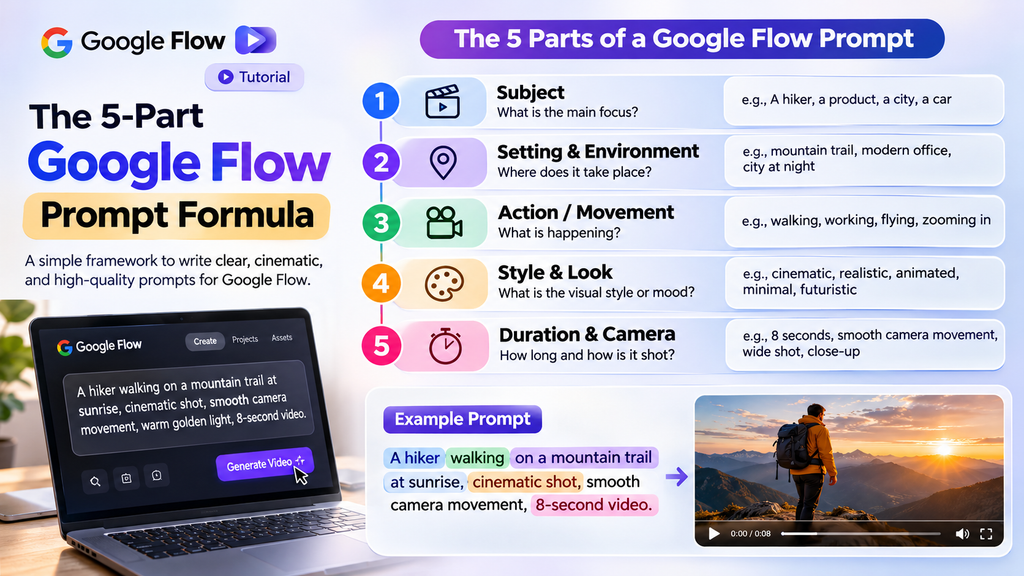
Writing an effective prompt for an AI video tool is very different from writing for standard text models. The system processes your text visually, mapping nouns to subjects and verbs to camera or subject motions. To get consistent results in this google flow tutorial, follow a structured framework.
The 5-Part Commercial Prompt Formula
- Subject: State exactly what is in the scene (e.g., “A sleek matte-black ceramic coffee mug”).
- Action and Motion: Describe specific, physical movement (e.g., “Steam rising softly in extreme slow motion”).
- Environment: Detail the backdrop and context (e.g., “Resting on a rustic wooden table beside a rain-streaked window”).
- Lighting: Set the lighting atmosphere (e.g., “Warm golden hour sunlight casting soft lens flares”).
- Camera Angle: Define framing and lens behavior (e.g., “Cinematic macro shot, slow camera push-in with shallow depth of field”).
Using this organized formula prevents the render engine from filling in missing details with random visual elements.
Camera, Lighting and Composition Tips
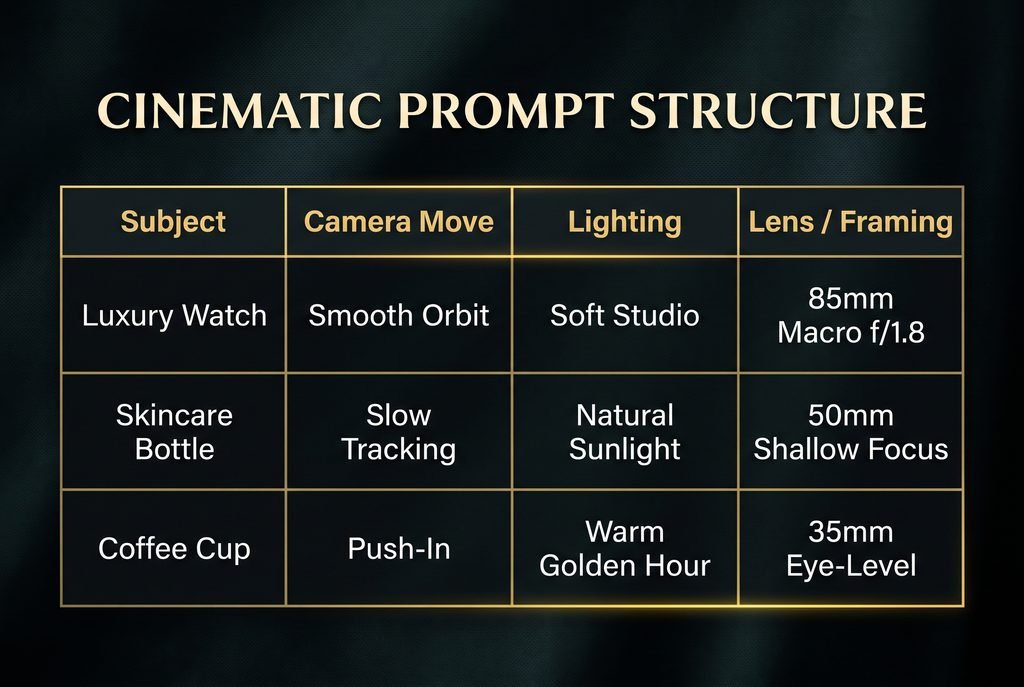
Creating professional cinematic quality requires speaking the language of filmmakers. Adding technical cinematic terms to your prompts gives you far greater control over the final visual output.
Essential Camera Movements
- Push-In / Dolly In: Smoothly moves the camera closer to the subject, creating focus and emotional intensity.
- Tracking Shot: Moves alongside a moving subject, keeping the primary focus steady while the background glides by.
- Orbit Shot: Rotates 360 degrees around a central product or person, revealing every angle in detail.
- Drone Aerial Shot: Elevates high above the scene, capturing vast landscapes or urban environments with smooth forward motion.
If you want to dive deeper into combining complex motion paths without visual distortion, make sure to read our detailed guide on How to Write AI Video Prompts.
10 Free Google Flow Prompts
Copy, edit, and use these ten tested prompts to generate professional video scenes across multiple styles immediately:
- Luxury Perfume Commercial: Macro shot of a frosted glass perfume bottle on dark polished granite, crystal clear water droplets splashing softly at the base, elegant studio spotlight, slow camera push-in, cinematic lighting, ultra-sharp detail.
- Cozy Lifestyle Scene: A steaming ceramic mug on a oak table near a window, soft rain falling outside, warm golden indoor lighting, gentle slow-motion tilt up, shallow depth of field, 85mm lens.
- Tech Gadget Unboxing: A sleek wireless earbud charging case sitting on a dark matte background, subtle blue neon light rimming the edges, smooth 360-degree orbit shot, high-tech commercial feel.
- Cinematic Nature Landscape: Drone camera flying smoothly over a dense pine forest covered in morning mist, warm sunrise light piercing through foggy tree canopy, majestic cinematic atmosphere.
- Urban Streetwear Showcase: A model wearing an oversized urban street hoodie walking down a rainy city alleyway at night, neon sign reflections glittering on wet asphalt, dynamic tracking camera shot.
- Artisanal Beverage Pour: Rich iced coffee pouring smoothly into a tall glass filled with ice, tiny splash dynamics captured in slow motion, bright natural morning studio lighting, crisp close-up framing.
- Abstract Motion Background: Flowing liquid silk textures in dark navy blue and metallic gold, gentle organic wave motions, glossy reflective surface, macro view, soothing cinematic motion.
- Fine Jewelry Presentation: A gold ring adorned with a brilliant diamond resting inside a velvet presentation box, soft spotlight creating gentle lens flares, smooth low-angle camera push-in.
- Modern Interior Architecture: Minimalist luxury living room with floor-to-ceiling glass windows overlooking a forest, warm sunlight shifting gradually across timber floors, slow horizontal pan.
- Aesthetic Desk Workspace: Top-down view of creative workspace with hands typing on a modern laptop, steaming coffee mug on the side, soft ambient lighting, subtle slow-zoom effect.
How to Fix Bad Results
Even when following a thorough google flow tutorial, AI video generation engines occasionally produce odd visual artifacts or jittery movements. Here is how to fix common rendering problems quickly:
- Eliminate Motion Distortion: If subjects look warped or morph unexpectedly, reduce the camera speed parameter or remove contradicting motion descriptors from your prompt.
- Fix Blurry Details: When fine details look soft or smudged, explicitly state technical lens specs in your prompt like “sharp focus, 85mm lens, 4k detail, clear definition”.
- Prevent Scene Flicker: Rapid lighting changes often stem from conflicting atmosphere words. Ensure your lighting terms (e.g., “dramatic shadows” vs. “bright studio diffusion”) are consistent.
- Maintain Subject Consistency: When converting photos into video clips, start with high-contrast, sharp source images that have clean backgrounds.
For a complete breakdown on comparing different video generation platforms and finding the ideal tool for your budget, review our round-up of the Best AI Video Generator for Beginners. Additionally, if you plan to convert static photos into full moving videos, read our standalone tutorial on Image to Video AI Guide.
Get the Complete Flow Guide
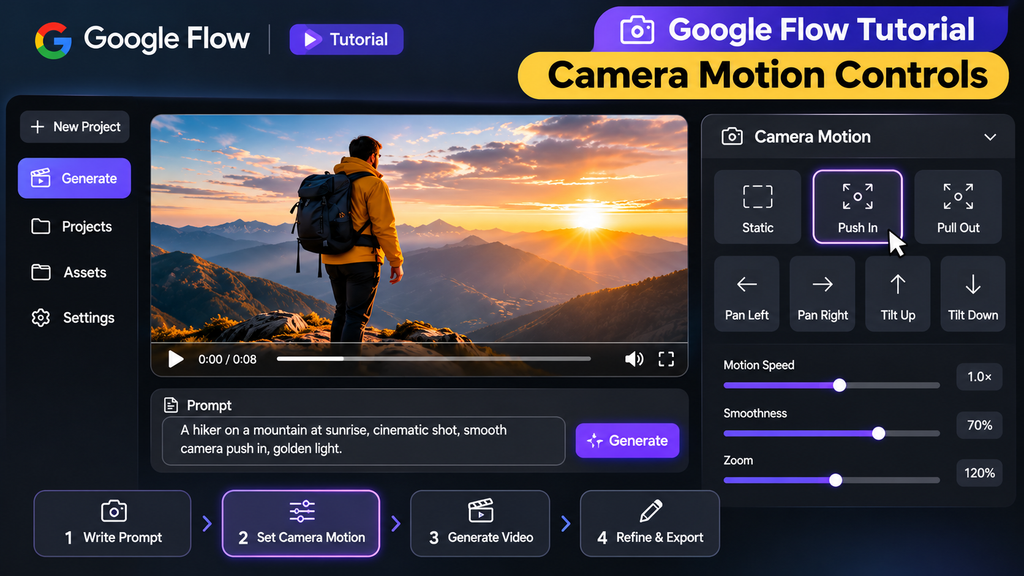
Creating consistently high-converting video content requires structured, battle-tested templates. Instead of spending endless hours testing random prompt strings and camera controls, utilizing a proven workflow lets you produce stunning brand videos on demand.
Master Professional AI Video Production Today
Complete AI Video Creator Toolkit.
Upgrade your visual production with over 500 customizable AI video prompts, shot-list formulas, camera motion guides, and commercial ad workflows designed for creators and brands.
Build high-converting social video assets in minutes
Get the 500+ Customizable AI Video Prompts Pack on Etsy | Explore the Image-to-Video AI Guide & Prompts |Visit Aesthentica Studio Shop
Conclusion
Mastering this google flow tutorial equips you with a powerful, efficient workflow for producing cinematic AI video content without relying on high-end production gear or heavy editing software. By combining precise prompt structures with intentional camera angles and balanced lighting presets, you can consistently generate stunning visual scenes that grab attention and drive conversions. Start applying these 7 steps to your visual content strategy today.
FAQs
Q1: What is Google Flow? A1: Google Flow is a web-based AI video creation workspace that enables creators to turn text prompts and static images into cinematic video clips using generative AI models.
Q2: Is Google Flow suitable for complete beginners? A2: Yes, the interface features intuitive motion sliders, style presets, and straightforward controls, making it easy for beginners to generate high-quality clips without prior editing experience.
Q3: Can I create commercial video ads for e-commerce with Google Flow? A3: Absolutely. Online sellers and marketers frequently use Google Flow to create high-impact product video ads, social media reels, and promotional teasers.
Q4: How do I prevent unnatural flickering or visual distortion in generated videos? A4: You can prevent artifacts by using subtle camera movement settings, avoiding contradictory lighting descriptions in your prompt, and keeping your core motion commands simple.
Q5: Can I animate my existing product photos into video clips? A5: Yes, Google Flow supports Image-to-Video mode, allowing you to upload static product images and add smooth camera zooms, pans, and cinematic movement.